



Remote Software Install SDD Pathfinder Work with JLR-DOIP-VCI-WF

$199.00
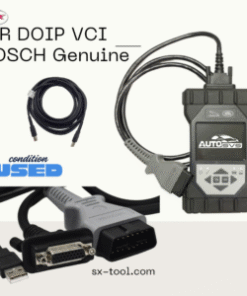
The new JLR DOIP DOIP WiFi was official dealer approved Diagnostics over Internet Protocol (DoIP) Vehicle Communication Interface (VCI) unit is the only unit that will be compatible with Pathfinder and all JLR vehicles with the new vehicle architectures (from the Range Rover/Range Rover Sport (L405/L494) 17MY onwards) or allow the enhanced diagnostics that Pathfinder will offer the retailer.
Remote Software Install SDD Pathfinder Work with JLR-DOIP-VCI-WF
Product Description:
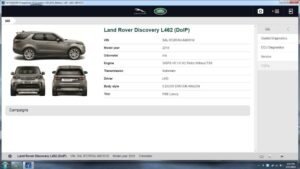
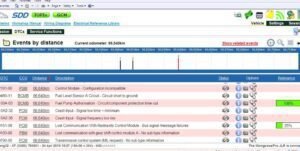
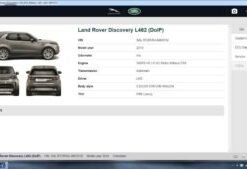
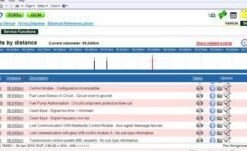
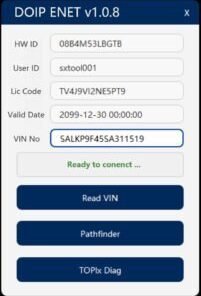
This service offers a complete remote installation and configuration of the Symptom Driven Diagnostics software integrated with Pathfinder engineering modules, specifically optimized to work with the official Wireless DOIP VCI interface. Moreover, a qualified technician performs the installation remotely via Team Viewer or Any Desk, and he will set up the full offline diagnostic environment on your laptop or workshop PC. The package includes the SDD diagnostic platform, Pathfinder V 374 engineering tools, all necessary drivers, communication protocols, and license activations. Once installed, the system enables full Diagnostics over IP communication over both wired Ethernet and WiFi connections using the JLR DOIP VCI WF, providing high-speed, dealer-level access to Jaguar and Land Rover vehicles up to model year 2024.
How to Set the Preferences in PATHFINDER?
- Select the PATHFINDER icon on the ‘JLR Application Launcher.
- Then select ‘Other User’ and enter your ‘User Identification’ and Password details.
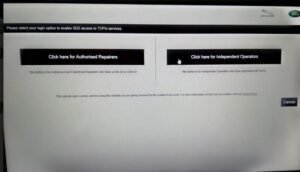
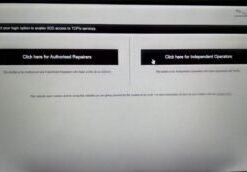
- Next, select ‘Independent Operator’ or ‘Authorised Repairer’.
- After that, select ‘OK’ and log in.
- Read the content of the ‘Warning’ pop-up and select ‘OK’.
- Select the three-bar icon in the top right of the screen. Then select the ‘Settings’ icon’.
- Select the ‘Communication Interface’ tab. Next, select ‘D-PDU’.
- Meanwhile, the ‘Windows Security Alert – Windows Firewall’ pop-up appears. Note: Do not select ‘Cancel’ when the ‘Windows Security Alert’ pop-up appears.
- In the ‘Windows Security Alert – Windows Firewall’ pop-up, select the check boxes for ‘Private Networks’ and ‘Public Networks’, then select ‘Allow Access’.
- Finally, you have now set the preferences in PATHFINDER. Note: Once you complete the initial installation and settings, the DoIP VCI is plug and play with the PATHFINDER software.
Related products
JLR Diagnostics
JLR Diagnostics

JLR Diagnostics

JLR Diagnostics
JLR Diagnostics

JLR Diagnostics
JLR Diagnostics
JLR Diagnostics