



OEM-Benz Navigation Update 2021 Map Code for NTG 3.5 W221 and W216 facelift (2009 and up) Affordable 2021 OEM Navigation Update Map PIN code for one car.
OEM Navigation Updates can end up costing you $300+ at your local OEM Dealership. Moreover, vehicles that are 2012 and Up need to be present at the Dealership costing additional labor. Therefore, we offer an alternative cost-effective, online OEM Navigation Update Service.
For drivers of OEM™ vehicles with the in-built navigation system it’s that time of year again when the annual map updates are released.
By having the latest OEM-Benz™ Navigation DVD it’s possible to update the map software on your system with all the latest directions and addresses that have changed over the preceding 12 months.
Our OEM Map Update Coverage
- Europe
- Russia
- Africa/Middle East
- Australia/New Zealand
- North America
- Southeast Asia
- China
- Taiwan
- Korea
- Japan
Our OEM Head Units Map PIN Code Supply
- NTG 3.5 – w221 and w216 facelift (2009 and up)
- NTG4.5 / 4.7 – w204, W212, w207, W246, w176, r172, r231, w166, w156 (pre-facelift 2011-2015), w463 (2011-2017)
- NTG 5.0 / 5.2 – w222, w217, w205, w257, w447, r190, w470, W253 (all pre-facelift)
- NTG 5.1 – w176, w117, w246, r172, w156, w166 (facelift 2016 and newer models), w212 (2015)
- NTG 5.5 – w213 (2016+), w205, w257, w222, x290, W253, W463 (2018+)
OEM Map Update Notes
- Select the head unit your car has. If you are unsure, please leave your VIN (Vehicle Identification No.) inside the order comments.
- Obtain the latest map database versions from us or from your local dealership
- You can then download the desired map to a flash storage of your choice: either a remote download link or an SD card, or a USB stick.
- After downloading the map data, simply insert the stick into the appropriate HU head unit slot.
- The update should automatically start. A PIN code will be requested for this purchase.
- We can instantly generate this PIN code after payment in 5 mins during our working hours 9 am – 9 pm (HK time zone)
A confirmation email will follow, after successful map pin generation, containing the generated map pin, and troubleshooting steps.
Please note:
- You are paying for one map pin update code, not map data, some of which is provided freely as a courtesy
- We only provide map updates for COMAND head units. Audio/Becker Map Pilot updates are not supported.
- Once we generate a map pin, a refund is NOT possible. Map pins are guaranteed to be accepted by the head unit if the parameters below have been correctly set.
OEM Benz Navigation Map Update Procedures
Updating the Maps on your OEM is relatively simple and does not require any special skills or tools. Follow the instructions below and you should have the latest map updates installed without any trouble.
Before You Start
- Ensure you have the latest version of the Maps database on a USB drive. If you have opted for “Download Maps” when making your purchase, go to the link provided and download the maps. Transfer the downloaded maps to a USB drive. If you have purchased maps on a USB Drive, you may skip this step.
- Make sure you have the map PIN/license key for the map updates in hand. If you have not received the map PIN as part of your package please order online via PayPal secure payment.
- The update process can take up to 60 minutes to complete. Ensure you have enough fuel to keep the car running for at least this period. During this time you will not be able to use your vehicle.
Lead Time needed to complete: 60 minutes
Step-by-Step Update Procedure
- Start your OEM vehicle and insert the USB into the USB slot.

- Wait 5-10 seconds until prompted for the update. The prompt will display the current Map version and Year along with the Update Map version and year. Click “Yes” to begin the update.

- You will now be prompted for the Map PIN / License key. The Map PIN / License Key would have already been supplied to you as part of your order. Enter the Map PIN/license key.

- The Map Update will now begin. Meanwhile, the process takes 30-60 minutes to complete so please be patient.

During the Map Update Processing
- You must keep the car running throughout the update process. Also, keep the Command System Functions disabled while the update is running.
- Interrupting the update process may potentially cause the update process to be frozen.
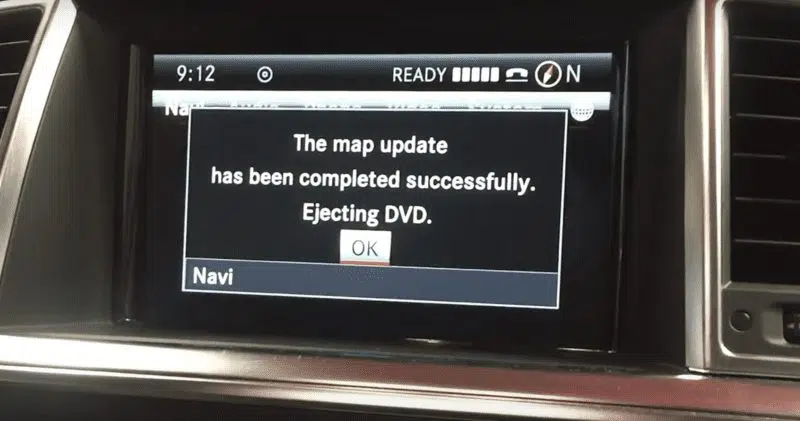
- Once the update is complete you will see a success message. Then remove the USB from the USB slot.
- After that, you can confirm the new Map version from Display.
Be the first to review “OEM-benz Navigation Update 2021 Map Code NTG 3.5”
Related products

$999.00

$6,999.00


$1,499.00
Software
$149.00


Software
$149.00

$79.00
$1,599.00

$199.00
Reviews
There are no reviews yet.